What is digital literacy?
Digital literacy is the ability to use technology comfortably and safely. This could be when you’re using a computer, browsing the internet, sending an email, or knowing how to tell what’s legitimate or not online.

Let’s get started!
You don’t need to be an expert – just willing to learn! We’ve outlined some basic techniques and tools to get you started.
Click the video for some background information on digital literacy, and scroll below to learn more about using digital devices, navigating the internet, using email, and more!
Basic Digital Literacy Skills
1. Getting comfortable with your devices
These days, there are a variety of devices at your disposal! Let’s review a few common devices that you can use:
Smartphones
A mobile phone with advanced computing capabilities. Common types of smartphones are iPhones (Apple), Galaxy X series (Samsung), Pixel series (Google).
Tablets
A portable, touchscreen computing device that is larger than a smartphone but smaller than a laptop
Laptops/Desktops
Desktops are computers that are stationary and require separate monitors, keywords, and mice, and are typically powered by a power cord. Laptops are portable computers that are battery-powered and have integrated displays, keyboards, and touchpads
Smart speakers
A speaker and a microphone combined with AI-powered software that responds to your voice. “Alexa” is a popular smart speaker provided by Amazon.
Learn how to use your smartphone with the video below!
2. Navigating the Internet
Search engines like Google and Bing are wonderful tools to find whatever you’re looking for, whether its restaurant recommendations, new products, the latest news article, or diving deeper on a topic you’re interested. Check out the tips below as a new internet searcher:
How to access a search engine
You can access search engines like Google by typing in your search bar, navigating to google.com, or using the internet browser app on your smartphone.
How to narrow your search
To get the most relevant results, be as specific as possible when searching. Instead of searching “lawn mowing”, try searching with additional keywords that will tailor your search, like “lawn mowing weekend service near me”.
How to spot ads
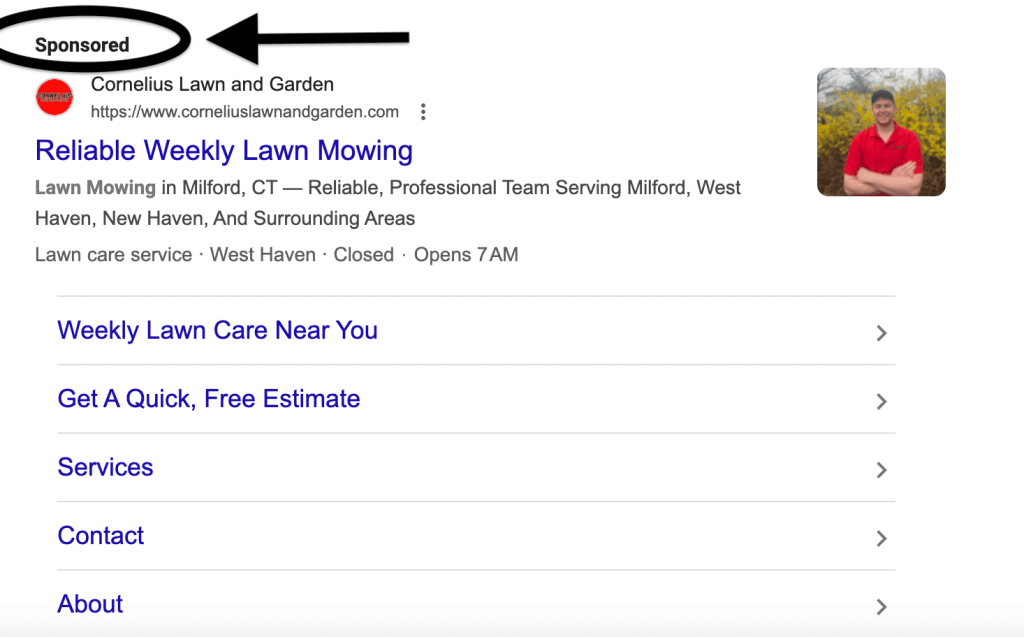
Google places advertisements for websites in the search results, and will typically have the words “sponsored” or “ads” at the top of the result. Be mindful of this as you look through search results to find what you need.
Using other search tricks
- Use quotation marks when searching to get an exact match of your phrase
- Use “definition:” in front of your search term to find its definition
- Tailor your search results by images, videos, shopping, and maps using the filters immediately under the search bar
3. Using Email
Learn how to use your email on a smartphone below!
Ready to Keep Learning?

Scams and Misinformation
Photo by Pixabay on Pexels.com

Online Safety
Photo by Pixabay on Pexels.com
 Information Literacy for Seniors 101